The details make the adventure.
Explore the full feature catalog, with specific workflows, real screenshots and the manuals behind them. Planned additions are clearly labeled.
An adventure studio, from first room to final build.
Start with visual designers and reusable actions. Go deeper with PCA Script, BASIC, Lua and native GDScript, including access to Godot's underlying APIs.
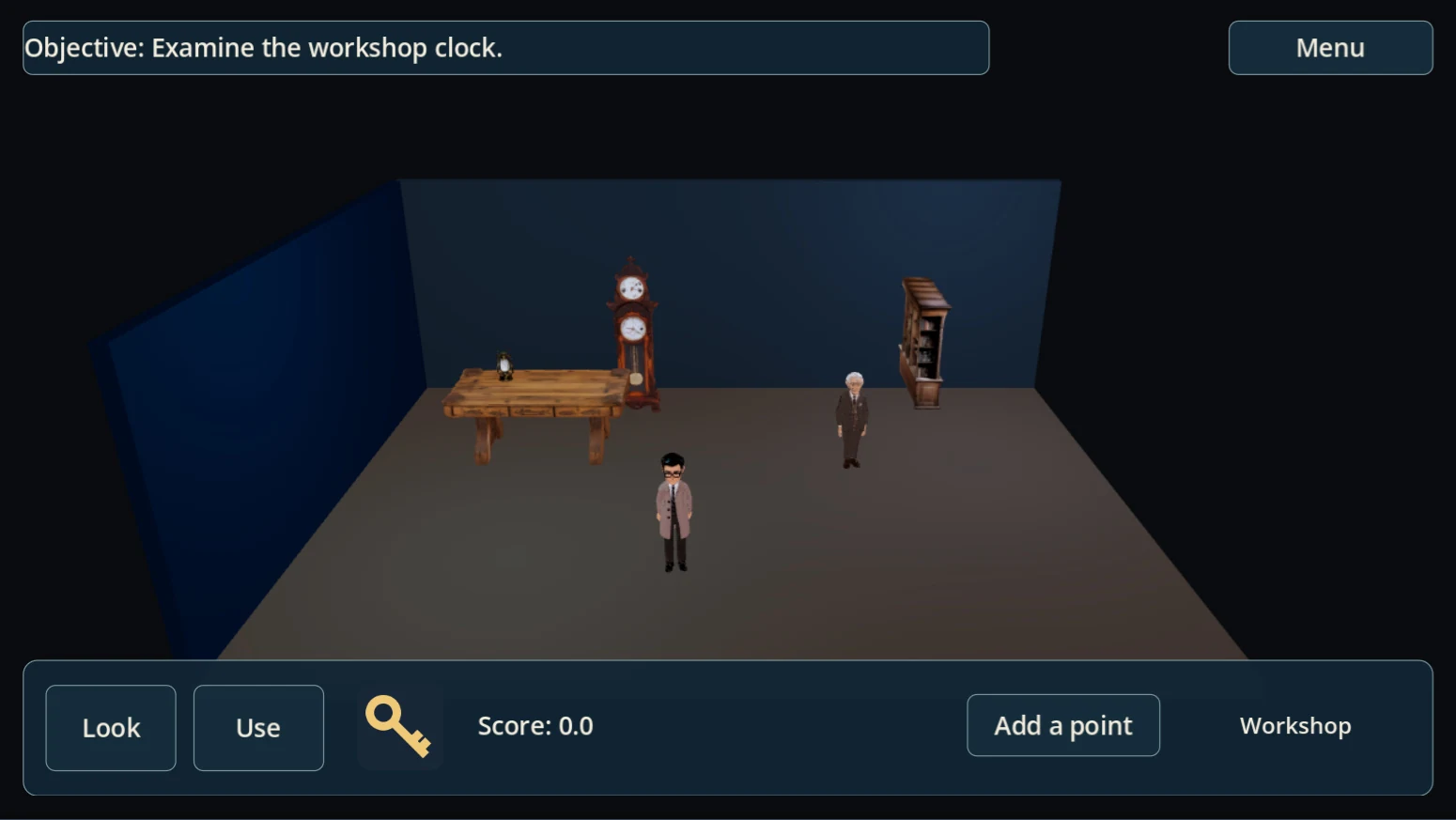
Build the adventure you imagineCreate 2D, 2.5D and 3D rooms, then choose how your players explore them.
- Create fully 3D rooms, flat 2D stages and 2.5D stages with depth-aware actors and navigation.
- Combine illustrated backgrounds, sprites and 3D characters to suit your adventure’s presentation.
- Build point-and-click games, third-person and over-the-shoulder adventures, or first-person exploration.
- Place imported scenery, characters, primitives, cameras, lights, triggers, regions and spawn points visually.
- Move, rotate and scale objects with gizmos, or enter exact transforms in the Inspector.
- Organize room contents in folders, search crowded scenes and filter objects by type.
- Edit walkable navigation polygons, insert vertices and place blockers around solid scenery.
- Tune character clearance, collision volumes and approach distances independently of the decorative model.
- Create named arrival points and connect rooms with destination scenes, spawns and transitions.
- Attach Look, Use, Take, Talk and custom verb responses to hotspots, characters, triggers and regions.
- Switch between point-and-click, keyboard/gamepad direct movement, first-person and drag-to-move profiles during play.
- Choose context-sensitive interaction, a verb bar, cycling cursors or a pop-up action coin.
- Adapt the cursor and proximity interaction when the player changes between mouse and gamepad.
- Use touch-style drag movement while taps still activate objects and GUI dragging keeps priority.
- Change movement and interaction settings from actions, visual graphs or supported script languages.
- Reuse puzzle responses across control styles, so changing the interface does not require rebuilding the puzzle.
- Shape navigation polygons by adding or removing points, reversing their winding or resetting them, and connect overlapping walkable areas.
- Set a box collider’s size and local offset separately from an object’s visual model and interaction approach settings.
- Override automatic approach per object, tune the stopping distance from the target surface and turn the actor toward the target before the response.
- Use trigger entry and exit actions independently of pointer interactions, including explicitly disabling a trigger after its one-time response.
- Configure supported surface walking, room gravity and jump speed for a suitable 3D movement setup and authored input bindings.
- Add typed custom properties to selected scene records and use Raw JSON validation and application for advanced record fields.
Sources & further reading
- Getting started with PCA3D · pages 14–19, 25–27
- Eight Adventure Interface Workshops · pages 26–95
- Action Lists & Events · pages 93–100, 143–149
- 0.86.3 release notes
- The Scene Designer — Part 1 · pages 28–33
- The Scene Designer — Part 2 · pages 35–36, 45–46
- The Scene Designer — Part 3 · pages 8–12, 79–81
2D stages, depth and walk-behind sceneryBuild illustrated rooms with animated backgrounds, scrolling cameras, precise sprite placement and authored foreground masking.
- Author a 2D stage on its fixed orthographic axis, or use a 2.5D stage with depth and 3D views; changing the view does not convert a room’s underlying family.
- Set the background image plane, world scale and pixel-perfect presentation for a stage.
- Animate a room background with additional frames, frame timing and loop or bounce playback.
- Choose fixed, player-follow or near-edge stage cameras with axis controls, look-ahead, dead zones and scrolling bounds.
- Draw walk-behind polygons with baselines to hide the lower portion of a passing actor or mask the whole actor when appropriate.
- Choose Preserve Alpha, Alpha Cutoff or Solid masking, and tune the feet margin and depth offset.
- Use a walk-behind area without a separate cutout image to clip the room background itself, and control hidden actor shadows.
- Orient sprite billboards toward the camera, flat against the background, perpendicular to it or in an authored 3D orientation.
- Control sprite facing and fit actors by visible pixels or visible height, with a foot anchor for reliable floor placement.
- Mix 3D models with illustrated 2.5D scenery while using the shared hotspot, trigger, region and navigation tools.
- Use Clean 2D Room to hide editor helpers while composing the stage; it changes the editing view rather than gameplay visibility.
Sources & further reading
- The Scene Designer — Part 3 · pages 62–76
Custom verbs and responsive cursorsDefine the actions, pointer feedback and two-target commands that give your adventure its own interaction vocabulary.
- Create verb records with stable IDs, display names, enabled states, folders and comma-separated parser aliases, including multiword commands.
- Choose which verbs appear in the standard cursor and interaction list; independently authored GUI verb buttons can offer their own choices.
- Choose among nine documented modes: Context, VerbSingleClick, VerbDoubleClick, VerbDirect, VerbDirectDoubleClick, Direct, CyclingCursors, HotspotThenVerbCoin and VerbCoinThenHotspot.
- Use Direct mode’s left-click Look, right-click interaction and empty-ground walking, or choose a mode that waits for a selected verb and target.
- Create image-based cursor records with source-pixel hotspot coordinates; global cursor scaling adjusts the image and its hotspot together.
- Assign separate hover, left-press and right-press cursor records to an interactive object.
- Show the selected inventory item as the pointer, with object-specific feedback taking priority when applicable and optional right-click clearing.
- Connect GUI set-verb actions to the selected interaction mode, and display live {verb}, {target} and {command} labels.
- Give the parser multiword verb aliases and custom commands, then submit from a GUI text box with optional clearing and refocusing.
- Build commands such as Use key on door with a per-verb preposition, an opted-in source object and an allowed second-target list.
- Resolve two-target commands through either pointer selection or typed input, and cancel a pending command by changing the verb or calling CancelPreposition.
- Change the selected verb and forced game cursor independently at runtime, execute the selected verb on a target, or gate the shared verb route.
Sources & further reading
- Verbs & Mouse Cursors · pages 7–12, 15–20, 22–26, 28–39
Mouse, keyboard, controller, touch and VRConfigure device-specific inputs and switch the active control profile through the shared adventure systems.
- Configure proximity interaction radii, target hints, control icons, drag thresholds and gamepad look speed for the active movement profile.
- Choose WASD, arrow keys or both, with held-key movement or Sierra AGI-style press-to-walk and press-to-stop behavior.
- Configure automatic input-device switching separately from per-device movement profiles, or select the device and movement profile explicitly during play.
- Use Xbox, PlayStation 5 DualSense, Switch 2 and Generic controller profiles with automatic detection or a manual selection.
- Tune stick dead zones and generic axis inversion, and map available controller buttons to adventure actions such as interaction, menus, inventory, verbs and character switching.
- Map eight touch gestures: a tap, long press, two-finger tap, two-finger long press and swipes from each of the four screen edges.
- Tune gesture thresholds and use separate movement and look sticks for first-person touch controls, including desktop preview support.
- Set runtime pinch and wheel zoom limits and step size, plus maximum travel for two-finger camera panning.
- For compatible VR builds, choose teleport, continuous movement or both, with movement speed, teleport distance and snap-turn angle settings.
- Position VR inventory in front of the player or at the wrist, and configure shared button actions and device overrides for the required OpenXR setup.
- Change control and proximity settings with shared actions, and inspect the active control state from gameplay logic.
Sources & further reading
- Global & Project Settings · pages 32–35, 55–61, 63–65
Give your characters a voiceSet up animated actors, expressive portraits and speech that follows your recordings.
- Create reusable playable-character and NPC definitions, then place them in individual rooms.
- Use imported 3D models, sprites or frame animation as character artwork.
- Map idle, walk, talk and other gameplay states to the appropriate animation clips.
- Adjust model orientation, visual scale and room placement without confusing the artwork with the gameplay anchor.
- Configure movement speed, collision, navigation clearance and footstep behavior.
- Give NPCs activities or make a companion follow another character.
- Switch the active player and assign character-specific interfaces and inventory presentation.
- Define interaction responses and extra properties for each character.
- Use still images, animated artwork, video or 3D models as portraits; Live2D Cubism portraits need a compatible extension.
- Set portrait framing and animations, with a default portrait and overrides for individual dialogue lines.
- Drive lip sync from prepared voice timing, Rhubarb analysis or supported fallback mouth animation.
- Map mouth cues to blend shapes, jaw bones, mouth textures, drawn frames or Live2D parameters.
- Choose whether speech animation affects the room character, the portrait or both.
- Generate, inspect, preview and correct mouth-cue timing for recorded lines.
- Manage batches of recordings and give translated speech its own audio and timing data.
- Attach held items, accessories and effects to named points that can follow a model’s bones.
Sources & further reading
- Characters, Portraits & Lip Sync · pages 7–65
- The Asset Importer · pages 25–29
- The Scene Designer — Part 2 · pages 16–22
Conversations with consequencesBuild branching dialogue that remembers choices and reacts to the state of your game.
- Build conversations with connected Line, Choice, Action and End nodes.
- Select the active player as the speaker or bind a line to a specific character.
- Give responses stable IDs and connect each option to its own consequence.
- Return to a previous topic menu automatically or explicitly chain several lines and actions.
- Reuse the same answer from multiple menus without duplicating its content.
- Hide options with conditions, or leave unavailable choices visible but disabled.
- React to variables, inventory rewards and other puzzle state through dialogue actions.
- Style previously chosen responses while keeping repeatable help or Goodbye options available.
- Save selected-response history and reset it at the intended conversation scope.
- Set time limits and preselected outcomes for decisions, then author the timeout consequences.
- Call a second conversation and return to the first conversation afterward.
- Attach voice recordings and use language-specific voice keys.
- Combine typewriter text, portraits and synchronized mouth animation.
- Use wildcard placeholders to insert names, scores or other live values into a sentence.
- Build custom spoken-line windows and paged choice menus, including character-specific overrides.
- Add, remove or revise conversation topics during gameplay.
- Test a dialogue directly from its starting node, then connect it to NPC interactions, scripts or cutscenes.
- Choose Portrait, Classic, Speech Bubble, Subtitle or Cinematic dialogue styles.
- Format choices as plain, bulleted or numbered entries, and optionally repeat the player’s selected response as speech.
Sources & further reading
- The Dialogue Designer · pages 8–58, 75–76
- Global & Project Settings · pages 37
Direct the momentBring cameras, characters, speech and effects together on an editable timeline.
- Arrange camera, character, dialogue, sound, GUI and effect events on a timed timeline.
- Add events at the playhead, duplicate blocks, move or trim them, and use snapping for precise timing.
- Zoom and frame the timeline, sort events and calculate an ending with Auto Duration.
- Overlap actions while choosing explicitly which operations should wait for completion.
- Cut to a named camera, set a direct camera pose or blend between authored shots.
- Move cameras over time, follow an actor, frame a group and adjust targets or orbit settings.
- Move characters to marks, turn them toward one another and play mapped states or imported animations.
- Schedule recorded speech with portraits, lip sync and enough time for subtitle or typewriter presentation.
- Show titles, captions and changing game values through authored GUI elements.
- Place sound effects on named channels and control music separately from voice.
- Animate lighting, tint, glow, screen treatments and restrained camera shake.
- Call reusable scripts and exposed functions with parameters from timeline events.
- Coordinate attached props, named attach points and particle effects with character actions.
- Configure input locking, skip behavior and temporary camera, HUD and pointer restoration.
- Provide a custom skip control and explicit cleanup for lasting state changes and interfaces.
- Launch cinematics from startup, room events, dialogue or puzzle logic, with variables for play-once behavior.
Sources & further reading
- The Cutscene Designer · pages 7–55
- The Scene Designer — Part 2 · pages 25–34
Make the interface part of your worldDesign custom HUDs, menus and interactive screens with a detailed visual GUI designer.
- Place, size and anchor interface elements on a design canvas for menus, HUDs and interaction screens.
- Use text buttons, image buttons, labels and editable text boxes.
- Build panels, linked tab pages, list boxes and selection controls.
- Add image carousels, sliders, progress bars, radio buttons and check boxes.
- Connect widget values and labels to live game variables or authored data.
- Style fonts, text colors, backgrounds, borders and the radius of each corner independently.
- Assign background artwork and normal, hover or supported pressed-state images.
- Use custom slider backing and handle artwork.
- Apply animated artwork and layered GUI shaders without changing the room’s materials.
- Display 3D models in a separate viewer with its own camera, lighting and framing.
- Allow or restrict model orbit, pan and zoom; center the model and choose an embedded animation.
- Place video inside an interface rectangle and build your own playback controls and captions.
- Use event actions, visual scripts or functions for clicks, changes and other supported widget interactions.
- Animate interface opening and closing, and manage visibility and input ownership.
- Build custom inventory, dialogue, save/load, hint and journal surfaces.
- Replace the main menu, pause menu, options, speech windows and startup presentation.
- Assign personal interfaces to playable characters and switch them with the controlled character.
- Preview interface layout in the editor and run the game to verify real actions and bindings.
- Configure the GUI viewport and decorative overlay viewport independently of the world rendering size.
Sources & further reading
- The GUI Designer · pages 7–44
- GUI Styling, Shaders & Effects · pages 9–57
- 3D Models & Video in GUIs · pages 6–41
- Replace the Built-in Screens · pages 4–67
- Global & Project Settings · pages 29
Keep every clue and every choiceBuild the inventory, save system and progress screens your adventure needs.
- Define inventory identities, names, descriptions, artwork, categories and interaction responses.
- Support stackable quantities and item combinations for multi-step puzzles.
- Use a carried item on another item, a character or an interactive scene target.
- Give playable characters separate inventories and transfer items between them.
- Build inventory grids and carousels with custom slot artwork, paging and selection behavior.
- Connect inventory selection to cursors and the game’s chosen interaction style.
- Create save/load browsers with captured thumbnails, named slots and empty-slot presentation.
- Offer sorting, renaming, deletion and custom save/load command buttons.
- Track flags, numbers, text and arrays to remember puzzle and story progress.
- Bind progress bars to values and choose their range, fill direction, labels and artwork.
- Run authored actions when a progress threshold is reached.
- Organize hints by topic and reveal answers gradually through game actions.
- Create quests containing stages and objectives, then start, complete, fail or restart them explicitly.
- Show quest state in a journal with filters and custom entry styling.
- Guard one-time rewards so returning to an interaction does not repeatedly award items or points.
- Restore inventory, variables, quest state and other supported adventure state when loading a save.
- Set maximum stack quantities and non-stackable limits; a full stack does not automatically create a second slot.
- Run an item’s first-found script when its quantity changes from zero to positive; a separate saved flag can make the reward occur only once across reacquisitions.
- Provide normal, hover, mouse-leave, pressed and drag artwork, with state-specific animation frames, frame rates and looping when the grid enables animated item icons.
- Link an inventory item to its scene pickup so acquisition removes the associated room object.
- Filter item use with item-side allowed targets and target-side allowed inventory items; a matching item-side response has priority.
- Define item combinations and reverse matching; explicitly remove quantities in successful-use actions because the documented 0.86.3.4 consume option does not remove them automatically.
- Configure initial inventories, eligible carriers, category filters and item metadata such as rarity, value and weight; game rules decide how that metadata affects play.
- Separate visible inventory slots from carrying capacity, and optionally let players reorder items by dragging a slot before another slot.
Sources & further reading
- Save Games & Inventory · pages 6–30, 40–73
- Progress Bars, Hints & Journals · pages 5–46
- The Variable Designer · pages 7–33
- The Inventory Designer · pages 5–7, 9–15
Build logic you can seeStart with action lists, grow into node graphs and reuse the same game events.
- Attach ordered action lists to object verbs, direct clicks, room entry and exit, triggers and GUI controls.
- Build node graphs with branches, comparisons, loops, waits and reusable calls.
- Use common actions for characters, inventory, dialogue, cameras, GUIs, audio, quests and saving.
- Compose nested conditions that test variables, inventory and other game state.
- Set, change and compare Boolean, numeric, string and array values.
- Keep reusable puzzle operations in one script and call them from several interactions.
- Pass arguments to custom functions and use supported return values.
- Expose typed script functions as editable Functions as Nodes in visual graphs and action lists.
- Receive shared game events for dialogue, movement, media, saving and other supported systems.
- Emit custom events so separate parts of the game can react to the same occurrence.
- Use the caller context, including supported this references, to act on the object that triggered the logic.
- Filter completion events to the intended actor, media item or operation before continuing a sequence.
- Respond to attach-point contacts and local world events.
- Inspect live variables during a test while keeping authored starting values separate from runtime changes.
- Search a documented catalog of 231 node types in 0.86.3.4, covering events, conditions, dialogue, inventory, animation, media, cameras and other action families.
- Resize and arrange nodes, duplicate selected graph content, and navigate with zoom, snapping, a minimap and Auto Arrange.
- Resolve live variables, caller properties, event fields, named parameters and positional arguments inside nested JSON arrays and dictionaries.
- Define named function entries with typed parameters and defaults, expose them through Call Script Function, and choose literals or live expressions for each parameter.
- Return structured values from a helper graph and store a call’s result for later conditions and actions.
- Create a GDScript conversion copy that embeds the original graph and runs it through RunVisualGraph, while preserving the visual source.
- Create a readable PCA Script conversion copy, with manual review for graph-only operations, complex loops or unusual branching; conversions are not live synchronized.
- Validate and apply advanced node data through the script record’s Raw JSON when an optional field is not exposed in the inline node editor.
Sources & further reading
- Action Lists & Events · pages 5–60, 62–187
- The Variable Designer · pages 7–31
- Visual Scripting in Depth · pages 8–9, 16–17, 23, 34–36, 41–45, 71–72, 80–92
Your scripts. Godot underneath.Use PCA Script, GDScript, Lua and BASIC together, with native Godot access when you need it.
- Combine visual scripting with PCA Script, GDScript, Lua and BASIC in the same adventure.
- Use the shared adventure action API to control movement, dialogue, inventory, cameras and interfaces.
- Read and change PCA records, variables and supported object properties.
- Organize reusable functions in script records and include libraries where the language supports them.
- Route cross-language calls through IncludeScript and CallScript, with explicit arguments and results.
- Publish functions with typed parameters as visual nodes and reusable action-list calls.
- Subscribe to game events and use the context of the character, object or interface that invoked a function.
- Write Lua 5.4 gameplay logic with tables, modules and reusable helper functions.
- Use Lua wait and parallel helpers for supported asynchronous adventure sequences.
- Create native Godot nodes from Lua through ClassDB, including interface nodes such as CanvasLayer and Label.
- Use native GDScript classes, nodes, signals, resources and input APIs.
- Build custom Godot interfaces and rendering, or call native helper classes from PCA script records.
- Access Godot file, physics and 2D/3D APIs when extending the engine’s built-in adventure systems.
- Export editable Godot source for deeper project customization and platform integration.
- Keep saved adventure state explicit: custom native nodes and script-local values are not automatically persistent PCA records.
Sources & further reading
- GDScript Programming & Godot · pages 9–65, 224–229, 320–326
- PCA Script Programming · pages 8–49
- Lua Scripting · pages 27–38
- Action Lists & Events · pages 26–33
- BASIC Scripting · pages 26–29
- Error Handling & Debugging · pages 15–19
BASIC for adventure logicWrite structured BASIC with shared game actions, saved story variables, events, reusable functions and asynchronous sequences.
- Edit BASIC script records with validation, snippets, autocomplete and run controls, using case-insensitive language keywords and optional type declarations.
- Choose function-local DIM values, module DIM or STATIC state, and GLOBAL or SHARED variables that participate in saved game state.
- Use arithmetic and Boolean expressions, IF / ELSEIF / ELSE, equality-based SELECT CASE, FOR / STEP, FOR EACH, WHILE and DO or REPEAT loops.
- Work with zero-based arrays, dictionaries, string helpers, numeric functions, random values, distances and Vector3 values.
- Define FUNCTION and SUB routines with optional parameter defaults and explicit return values.
- Read and change supported GUI element properties, and invoke BASIC from interface actions using the shared script-record route.
- Suspend a script with WAIT or WAIT UNTIL while the game continues, and use Unix-time deadlines for authored time-based logic.
- Run PARALLEL branches concurrently and wait for their completion, with branch-local variables and supported AWAIT behavior.
- Read and write text or JSON files, including writable user:// locations, while checking operation results; these files are separate from ordinary save-slot state.
- Receive named events with their context, define ON event handlers and emit custom events for other game systems.
- Expose real BASIC functions as visual nodes with typed parameters and an optional result variable.
- Call PCA Script, Lua or native GDScript helpers through CallScript and use the shared record and gameplay APIs from BASIC.
- Use TRY / CATCH and ASSERT for supported runtime failures within the implemented structured BASIC dialect.
- Access the guide’s reference catalog of 206 shared gameplay actions for characters, inventory, rooms, dialogue, interfaces, media, saving and other systems.
Sources & further reading
- BASIC Scripting · pages 3–29, 31–32, 35–46
Find the right shot and the right lightCompose your scenes with advanced cameras, lighting, shadows and optional rendering effects.
- Compose perspective and orthographic shots with field of view, view height and clipping controls.
- Copy the editor view into an authored camera and assign a default shot to the room.
- Use fixed, follow, group, framed and path-based advanced camera behavior.
- Frame multiple targets, tune offsets and keep conversation participants within the shot.
- Adjust camera priority and use room zones to select a view.
- Set bounds, follow speed, look-ahead and limits for moving or scrolling shots.
- Blend between cameras with easing, or cut instantly to the next view.
- Control manual camera moves, orbiting, shake and fades from shared actions.
- Set depth of field and focus transitions where the selected renderer supports them.
- Use dedicated settings for 2D stage framing, first-person play and VR camera ownership.
- Add point, spot, directional and hemisphere lights.
- Balance global and room ambient light, skyboxes and local light sources.
- Tune shadow quality, directional cascades, bias and object shadow behavior.
- Combine emissive materials, glow and nearby light sources for readable illuminated objects.
- Use fog, lens flares and visible light shafts with their required rendering setup.
- Choose reflective materials, room reflection captures or live mirror surfaces for the intended effect.
- Add object hover outlines and whole-scene silhouettes, including an edges-only treatment.
- Select a renderer and quality policy appropriate to the target hardware; advanced effects vary by renderer.
- Select Compatibility, Mobile, Forward+ or the Forward+ Enhanced configuration, then choose a separate Authored, Balanced or Performance quality policy.
- Configure SDFGI, screen-space reflections, ambient occlusion and reflection quality where supported; depth of field needs Mobile or Forward+, while volumetric fog needs Forward+.
- Adjust exposure, contrast, saturation, warmth, vignette, film grain and letterboxing, with Linear, Reinhard, Filmic or ACES tone mapping.
- Constrain a following camera to an authored path; timed cinematic movement remains a separate cutscene workflow.
- Author RGB bulb strings with cycling colors, optional real lights at chosen intervals and action-driven switching, alongside separate static room captures and live mirror surfaces.
Sources & further reading
- Cameras, Lighting & Rendering · pages 8–85
- 0.86.3 release notes
- Global & Project Settings · pages 22–24, 26–29
- The Scene Designer — Part 3 · pages 13–31
Shape the atmosphereLayer screen looks, particle effects and moving scenery around your adventure.
- Build global screen shader stacks and override them for individual rooms.
- Combine color treatments while controlling layer order and shared values.
- Use toon, sketch, crayon, outline and other illustration-style treatments.
- Apply analog and retro looks, including documented PSX-style and N64 filters.
- Add screen weather, snow accumulation, horror fog or other supported atmospheric presets.
- Place a shader on a single object instead of the whole scene.
- Apply localized tint, blur and other supported effects through scene regions.
- Keep GUI shaders, object materials and screen effects independently controllable.
- Author particle emitters with presets for fire, rain, snow, hail, mist, clouds, swarms and bursts.
- Tune particle amount, lifetime, motion, emission area and one-shot behavior.
- Use custom particle images and build specialized effects such as lightning bolts or lightning balls.
- Attach an effect to a named point on a character, model or carried prop.
- Bind attach points to bones and apply per-animation adjustments where necessary.
- Choose local or world particle motion, then stop, hide or detach effects through actions.
- Build parallax planes for scrolling 2D stages with separate movement factors and sufficient image coverage.
- Add decorative screen overlays and camera-driven overlay parallax.
- Control room looks, particles, overlays and effects through actions, nodes, scripts and cutscenes.
- Combine bursts, sound, blur, shake and snow changes while planning explicit cleanup after the sequence.
- Use up to eight built-in shader layers on an object or room screen stack; an imported custom shader takes precedence over the corresponding built-in stack.
- Animate continuous rotation and pulsing scale with direction, timing and repeat controls, then change or toggle that motion during play.
- Give a region a projected tint, blur, bloom, preset or custom canvas effect, or an authored surface material, mirror or spatial shader; region appearance does not automatically create a collision wall.
Sources & further reading
- Shaders, Effects & Layered Scenery · pages 10–79
- GUI Styling, Shaders & Effects · pages 31–57
- The Scene Designer — Part 3 · pages 32–34, 45–48
Bring modern and classic assets togetherImport artwork, models, animation, audio, fonts, shaders and data through dedicated asset workflows.
- Import assets once, give them stable IDs and reuse them across scenes, characters and interfaces.
- Work with modern model routes including GLB/glTF, FBX, OBJ, DAE and Blender source files; the storefront also advertises STL support.
- Import specialist model formats including MDL, MD2, MD3, VOX, QB, LWO, DirectX X and Blockbench BBMODEL.
- Use animated MagicaVoxel models and supported animated Blockbench content.
- Preview model animations and adjust import orientation, scale, frame rate and other format-specific settings.
- Override supported model texture channels and create named attach points on models or images.
- Import PNG, JPG/JPEG, WebP and SVG images, plus supported BMP and TGA animation frames.
- Slice equal-cell sprite sheets or assemble numbered image files into an animation.
- Import a Krita .kra drawing as a still, sprite sheet or supported paint-animation clips.
- Use named Krita animation groups, retaining held frames; complex unsupported features can be exported to image sequences.
- Import Live2D Cubism bundles when their referenced files and compatible extension are available.
- Preview MP3, WAV and Ogg audio and prepare voice lip-sync tracks; AAC and Opus compatibility is also advertised for supported media paths.
- Import MP4, M4V, AVI, MPEG, WebM, MOV, MKV, FLV and OGV video with compatible codecs, including advertised H.263/H.264 and VP8/VP9 media.
- Use TTF, OTF, WOFF and WOFF2 fonts, FNT/FONT bitmap fonts, and supported experimental Sierra AGI, SCI and SCUMM fonts.
- Import native spatial or canvas-item Godot shaders, or convert the supported GLSL fragment subset.
- Store JSON, TXT, CSV, XML, CFG and INI data, and reference other files for a compatible game-side reader.
- Browse controller and keyboard icons for tutorials and on-screen input prompts.
- Assign translated asset replacements and reimport updated media while keeping reusable record IDs.
- Check format variants, dependencies and target-platform decoder support; a listed extension does not guarantee every possible file encoding.
Sources & further reading
- The Asset Importer · pages 12–81
- Additional advertised media formats
Old-school soul, modern toolsMake typed-command adventures and classic point-and-click interfaces with shared puzzle logic.
- Define verbs and accepted phrases in the Text Parser Designer.
- Give scene objects, characters and carried items useful names and synonyms.
- Ignore filler words while preserving the words needed to identify the action and target.
- Use Command Preview to see how a typed instruction resolves before testing its response.
- Add a command-entry text box and connect submitted text to parser actions.
- Reuse existing Look, Take, Talk, Walk and Use responses from typed commands.
- Support two-object phrases and inventory commands for traditional adventure puzzles.
- Create full custom commands that call visual scripts or supported text handlers.
- Author clear feedback for missing nouns, unknown words and actions that are unavailable in the current state.
- Build text-only or graphical parser games with movement controls suited to the chosen style.
- Recreate verb bars, cycling cursors, action coins and character-switching interfaces through the supplied workshops.
Sources & further reading
- The Text Parser · pages 4–37
- Text & Sierra-Style Adventures · pages 4–68
- Eight Adventure Interface Workshops · pages 26–115
A workspace that fits the way you workArrange the editor, choose its appearance and keep large adventure projects manageable.
- Dock, resize, hide and rearrange editor panels, or float them onto another monitor.
- Focus the central workspace when a scene, graph or timeline needs more room.
- Choose from more than 75 included editor themes.
- Use editor localization in 17 languages and adjust the interface scale.
- Search the Adventure Database and organize reusable records in folders.
- Duplicate records with new IDs and organize scene objects separately from reusable definitions.
- Use Undo and Redo, Save As for checkpoints and Reload when returning to a saved project.
- Look for recovery snapshots after an interrupted editing session.
- Use tooltips, integrated starting guidance and the downloadable manuals alongside the editor.
- Run the standalone editor on Windows, macOS or Linux.
- Inspect scenes in 3D, Designer, Mesh, 2D and standard axis or isometric views, with frame-all and frame-selection controls.
- Hide or lock objects in the editor while organizing a scene without changing their runtime visibility or gameplay behavior.
- Configure the native GDScript editor’s line numbers, indentation, autocomplete, minimap and tab or space width.
Sources & further reading
- Getting started with PCA3D · pages 6–12
- Editor workspace details
- The Scene Designer — Part 3 · pages 5–8
- Global & Project Settings · pages 39
Startup, saved preferences and player optionsPlan the opening sequence, set game defaults and expose supported audio, language, accessibility and save controls.
- Set project title and author, initial player and room, default click and footstep audio, and the new-game startup script or cutscene.
- Arrange startup image and video cards before an optional GUI splash and main menu, then run the new-game startup action when play begins.
- Choose splash-card duration, transitions, video completion or timed playback, looping and muting, with separate audio that can stop with the card or continue.
- Configure desktop executable, application and game-pack names together with the supported branding icons.
- Assign game-wide GUI roles and character-specific overrides, including custom HUDs or a no-HUD presentation.
- Expose separate Master, Music, SFX and Voice volume controls and persist supported player preferences independently of authored project defaults.
- Offer supported language, font-size, high-contrast, reduced-motion and fullscreen settings; their effect follows the documented runtime and GUI paths.
- Provide text-speed and subtitle preferences for the systems that support them, rather than treating them as universal overrides for every authored presentation.
- Configure autosave permission, the autosave name and slot, quicksave controls and up to 100 regular save slots.
- Set save-thumbnail dimensions and a save-name template for the project’s save interface.
- Change supported game settings and project properties from shared actions; switching the renderer backend requires a restart.
Sources & further reading
- Global & Project Settings · pages 7–11, 14–19, 48–54, 63–65
Build the puzzle before the final artworkTest room layouts and game logic with simple geometry and procedural scenery.
- Block out a room with built-in primitives before importing finished art.
- Choose procedural scenery such as furniture, structural pieces and outdoor props from the scene menu.
- Set up the walkable area, blockers, spawns and camera composition while the scene is still simple.
- Test puzzle dependencies with plain objects and real inventory, variables and event actions.
- Experiment with character movement, approach distances and hotspot placement early.
- Replace prototype visuals with finished assets while preserving the intended game records and logic.
- Follow the supplied Last Signal and Clockmaker tutorial workflows from a basic playable scene to a furnished adventure.
- Apply base-color textures to primitives using Model UV or triplanar mapping, with repeat scaling and optional material tint.
- Replace a generated prop with an imported asset while keeping its scene record identity and adjusting its model and collider fit.
- Use procedural furniture, architecture, plants and street props, and simplify generated geometry without rewriting imported model assets.
Sources & further reading
- Getting started with PCA3D · pages 16–18, 47–59, 60–94
- The Scene Designer — Part 1 · pages 21–23
- The Scene Designer — Part 2 · pages 7–14
- The Scene Designer — Part 3 · pages 77–79
Music, voice and interactive filmCoordinate separate media systems for adventure soundtracks, in-world screens and FMV sequences.
- Play sound effects on named channels and stop, pause, resume or fade the intended group.
- Manage music separately with playback, pause, resume, fade and seek actions.
- Play recorded dialogue through the voice system so speaker binding and lip sync can follow the line.
- Preview audio and seek recordings in the Asset Importer.
- Start general video playback with fullscreen, muted and skippable options.
- Stop or seek video and react to natural completion through the appropriate event.
- Build FMV sequences with continuation at the end, at a chosen time or after interruption.
- Pause, resume and seek FMV while calling a script to present the next interactive choice.
- Embed a separate video player inside a custom GUI and build playback buttons around it.
- Add captions and title cards through interface elements, or combine video with branching story logic.
- Test the selected media encoding in the exported game, because container and decoder support varies.
- Combine looping room music with positioned ambient sounds that have their own audible radius and maximum volume.
- Create an FMV scene with a movie asset, autoplay and mute settings, starting time, player visibility, GUI and destination-scene controls.
- Use the Movie Frame Editor to preview a time, place timed stop markers and draw rectangular hotspots or regions over the video.
- Give movie interactions active time intervals, action data and destination scenes to build authored branching video sequences.
Sources & further reading
- Action Lists & Events · pages 70–81, 150–156
- 3D Models & Video in GUIs · pages 22–42
- The Asset Importer · pages 58–62, 66–67
- The Scene Designer — Part 3 · pages 38–39, 82–83
Translate the game as well as the editorPrepare game text, voices and artwork for the languages your players use.
- Define game language codes and names separately from the editor interface language.
- Collect translatable game strings in the Game Languages & Translations window.
- Export a language to UTF-8 CSV or TSV while preserving its exact source-text keys and substitution tokens.
- Import translated rows and review current and incoming values; valid rows can be applied while conflicts or invalid rows are skipped.
- Translate dialogue and GUI text while retaining live names, numbers and other substitutions.
- Map language-specific artwork and voice recordings to their original assets.
- Prepare separate mouth timing for each translated recording.
- Test fonts, longer labels and choice layouts in the running game for each supported language.
- Collect supported dialogue, GUI, inventory, quest, name and script-message text; identical source wording shares one translation, and changed wording creates a different key.
- Validate required placeholders such as player names and runtime values so translated text can keep its live substitutions.
- Map translated images, models, audio, video and fonts to compatible asset kinds; some GUI images need their source asset reapplied after a language change.
- Resolve localized voices through voice keys, source text or explicit audio assets; an explicit VoiceAudio assignment takes priority through the asset-mapping route.
- Choose text language and voice language separately, let voices follow the game language, and set movie-cue subtitle language independently.
- Exchange translation text and optional voice or asset mappings using UTF-8 files with comma, tab or semicolon import delimiters.
- Accept partial translator returns without deleting existing translations for blank or unchanged rows, and review changes against the export baseline.
- Detect placeholder mismatches, wrong asset kinds, duplicate entries, wrong-language files and stale import previews before applying affected rows.
- Switch supported language settings through shared actions and fall back from a regional language variant to its base language, then to the original source text.
Sources & further reading
- Getting started with PCA3D · pages 43–44
- The Asset Importer · pages 63–65, 74–75
- The Dialogue Designer · pages 44, 53
- Game Translations · pages 12–27, 29–36, 38–43
See what the game is doingPreview individual systems, inspect runtime state and find broken references before a build.
- Play or restart the complete adventure directly from the editor.
- Use Test Scene for a quick check of the room being edited.
- Launch a selected dialogue or cutscene in a fresh preview from its dedicated designer.
- Inspect Output & Diagnostics when a script, media asset or interaction fails.
- Run project validation to find missing IDs, assets and invalid references.
- Inspect live variable values and use the runtime console while testing.
- Record and replay supported gameplay data at a chosen speed for repeatable test runs; this is JSON replay data rather than a movie file.
- Test fresh games, ordinary saves, restored state and the compiled output on each intended target system.
- See validation errors and warnings with precise record paths and open the relevant record when its target can be resolved.
- Use Preview with errors for eligible editor previews while blocking validation errors still prevent a build.
- Validate supported script languages with their own diagnostics; PCA Script can report exact lines and suggest likely record IDs.
- Read and change shared runtime variables with get and set commands in the active preview console.
- Debug PCA Script specifically with breakpoints, Step and Continue, plus watches and snapshots of locals, constants, globals and caller context.
- Simulate a PCA Script event handler with test context before checking it against the real in-game event.
- Handle supported failures with PCA Script or BASIC guards, Lua protected calls and native GDScript status checks; GDScript TryCall validates a Callable rather than catching arbitrary engine faults.
- Inspect active-preview rendering details to see the selected renderer, camera and supported effect state when diagnosing visual differences.
Sources & further reading
- Getting started with PCA3D · pages 9–12, 93–96
- The Variable Designer · pages 18–19
- Action Lists & Events · pages 157–158
- Error Handling & Debugging · pages 4–6, 8–9, 11, 15–19, 22
Take the finished adventure to playersCreate desktop builds or continue developing an editable Godot project.
- Build standalone player games for Windows, macOS and Linux.
- Select a single desktop target or generate all three desktop outputs.
- Distribute the complete generated desktop folder, including its executable, runtime and game packs, configuration and required libraries.
- Export editable Standard, Mobile or VR Godot runtime projects; these are source projects for the corresponding Godot toolchain, not finished APK, IPA or VR binaries.
- Use configured local Build Tools or a compatible remote worker for supported Android, iOS and Web outputs, with the required Godot version, templates and SDKs.
- Produce an iOS IPA on a Mac with Xcode and signing configured, locally or on a build worker; store submission remains a separate process.
- Extend Godot source for Android, iOS, VR or console integrations, subject to platform approval, required SDKs and available export toolkits.
- Connect the remote-build client to an available compatible worker using its URL and token, and retrieve the resulting output ZIP; matching worker files and build dependencies are required.
- Use Remote Build for Android, iOS or Web output from the phone, tablet or browser editor routes documented by the guide.
- Build an ARM64 Android APK with configured Java, Android SDK and Godot templates; create an AAB through the editable mobile project’s Godot/Gradle workflow.
- Choose debug or release output with signing credentials configured on the machine that performs the build.
- Export a complete HTML5/WebGL2 Web build with its JavaScript, WebAssembly and data files using the Compatibility renderer.
- Configure secure cross-origin-isolated hosting and a suitable extension-enabled template for documented Lua Web builds.
- Run platform preflight checks for unsupported media and extensions, including non-OGV video on mobile/Web and recognized unsupported Cubism runtimes.
- Review import.log and export.log when diagnosing Godot version, missing template, stale runtime or export failures.
Sources & further reading
- Getting started with PCA3D · pages 93–94
- Godot and platform export details
- Build Tools & Game Export · pages 4–6, 8–18
On the development roadmap Planned · not included yetPlanned work is listed separately from the capabilities documented in the current guides.
- Planned: a Steam release with Steam integration and achievements.
- Planned: Steam Workshop support, including an itch.io route through the Steam CLI.
- Planned: C# and Python scripting.
- Planned: expanded physics capabilities and further engine tools.
- Planned: editor versions for iOS and Android.
Sources & further reading
No matching features. Try another word, or clear your search.
Product facts, asset formats & desktop downloads
A detailed snapshot of the product information on itch.io, reviewed Nov 25, 2026. Check the store and the matching manual for your build.
- Standalone desktop editor
- Windows, macOS, Linux
- Underlying engine
- Godot 4.7
- Store download version
- 0.86.3 · Early Access
- Supplied guide version
- 0.86.3.4
- Personalize the workspace
- More than 75 themes · 17 editor languages
- Input options advertised
- Keyboard, Mouse, Xbox controller, Gamepad, Joystick, Touchscreen, Smartphone
Adventure styles
2D point-and-click · 2.5D · 3D · Third-person · Over-the-shoulder · First-person · FMV · Visual novels · Interactive stories · Text-parser adventures
Asset formats and import routes
| Asset type | Advertised or documented formats |
|---|---|
| Images & drawings | PNG, BMP, JPG/JPEG, WebP, SVG, TGA, Krita drawings |
| Audio streams | MP3, WAV, AAC, Ogg Vorbis, Opus |
| Video containers | MP4, AVI, M4V, WebM, MOV, MKV, FLV, OGV |
| Video codecs | H.263, H.264, VP8, VP9 |
| Model & voxel import routes | OBJ, FBX, GLB, glTF, STL, DAE, Blender, VOX, QB, MDL, MD2, MD3, X, LWO, BBMODEL |
| Fonts | TTF, OTF, WOFF, WOFF2, FNT, FONT |
| Text & data | TXT, JSON, CSV, XML |
| Additional documented formats | Krita KRA, MPEG/MPG video, CFG, INI, Native Godot GDSHADER, Supported GLSL/FRAG/FS fragments |
Importer, codec, file variant and platform determine compatibility. Some routes convert content or are experimental. Live2D Cubism bundles require the compatible extension. Sierra AGI, SCI and SCUMM font routes are experimental.
The Audio picker in the supplied importer guide documents OGG, WAV and MP3. Broader advertised media streams and container variants depend on the importer and target build. See the detailed format limitations in the Asset Importer guide.
Desktop packages on itch.io
The paid application downloads are delivered through itch.io. The manuals and included practice files are available in the guide library.
Publishing and ownership
Sell the games you create with no PCA3D royalties, per-game fee or per-game-per-platform fee. The standalone workflow does not require Unity. Platform SDKs, asset licenses and applicable Godot license obligations still apply.